WARNING: for Manual Customizers and photographers with access to their site’s code only.
Yesterday Google released +1 buttons for use on any website. When a visitor clicks a +1 button on a page, he/she recommends that page to friends, contacts and the rest of the world. The next time that visitor’s connections Google something, they could see the +1’s directly in their search results – and in ads – helping them find their recommendation from their social network.
If all goes according to – Google’s – plan, we will soon see photo editors and buyers recommending your work to each other like crazy.
Here is the quick Google video about this new tool:
An Easy Way to Let Your Contacts Give You Some Google Love
Adding a +1 button to your public PhotoShelter galleries makes perfect sense. We, editorial photographers at least, often use them to showcase stories. Even if you have NOT just returned from an assignment, the content of your galleries will probably have a coherence that is relevant to your wider brand. Think wedding, portrait session, stock theme, etc. The button will appear but not work on urls that are not public so don’t worry about this affecting your privacy settings.
Pick Your Settings
Visit Google’s dedicated page and select the options you need.
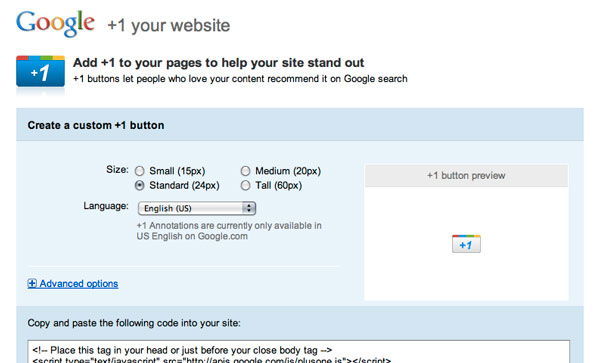
- Size: your choice;
- Language: also your choice but note that for now the annotations only appear in US English results;
- Include count (in Advanced options): tick the box if you want the button to show the number of clicks it received. For small traffic websites I find this kind of counter only highlights how few people have clicked. I usually don’t recommend it but it is your decision;
- Parse: keep the default setting;
- JS Callback function: leave blank;
- URL to +1:: this option lets you choose which URL the button will +1. You can’t enter a gallery URL here as each gallery has a different URL. Fortunately if you leave this attribute blank Google will use the URL of the page as found in the address bar (for the geeks: as defined in document.location.href). This should work fine on both public galleries and search results.
Grab the code
Scroll down and copy the line of code that reads:
<script type="text/javascript" src="https://apis.google.com/js/plusone.js"></script>
That line will load the necessary script from the Google server. Paste it into your Gallery Display page at the very end of the code. No need to paste the first line of code which is just a comment.
Then copy the last line of code. It should read something like:
<g:plusone count="false"></g:plusone>
depending on the settings you picked. That tag generates the button. Paste it into your Gallery Display page but this time paste it where you want the +1 button to render on your page. Again, no need to paste the first line of code.
When choosing where to render the button think like a visitor. Too close to your logo and it will appear to be related to the entire site. A good spot will always be near the gallery title. I chose to place mine alongside other social media sharing tools but clearly in a column that refers to the gallery.

Add a +1 button for your homepage as well
Of course you can just as easily add a +1 button that recommends your homepage. Keep in mind that for photographers seeking mainly jobs over stock sales, the homepage should be the primary focus of their SEO effort. It doesn’t have to appear only on your homepage. It can appear on other pages as well – by the logo in the header for example – but make sure to pick a location that leaves no doubt about what it relates to and enter your homepage’s URL in the ‘URL to +1:’ field otherwise Google will recommend the displayed page which might not be your homepage. In any case, having multiple +1 buttons does no harm.
To place a button on your homepage paste both lines of code into the homepage page.
To place a button in your site’s header or footer place the first line of code in your footer just before your closing body tag (should be right near the bottom of the footer’s code) and the second wherever you want the button to render.
The script only needs to be loaded once so if you have already pasted the first line of code into your footer you won’t need to also paste it in your Gallery Display page should you want to also show a button there.
Let me know if you think of creative ways of using the button.
 I'm an Englishman in New York. After growing up in France, studying in England and working in a bunch of developing countries, I moved to New York City in 2004.
+1 thanks, David, for explaining so many key points so clearly about google’s new +1 button. I’m off to place one on my home page, and will keep this browser window open as I do it. smiles – Ann
Thanks for this post. For folks using WordPress, there’s now a Google +1 plugin available that can add a +1 button in various sizes with and without a count.
I also like using the free addthis service/buttons (also using a WP plugin) to enable a bunch of sharing opportunities all at the same time. It can also do some displaying of Google +1, but seems a bit more limited.
Can this be integrated with the photoshelter template pages and how might I do this. I do not have a custom site and I am certainly not very tech savvy.
You need to have access to the code of your site to embed the button. This is for manual customizers I’m afraid.